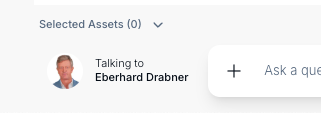
You can start an interview in two ways:
Open the Interviews screen.
Click New Interview.
You can also start an interview while exploring the Twin Gallery, the Facet Gallery, the Method Gallery, or the Task Gallery.
Select one or more items and click Start Interview.
After starting, a configuration dialog appears where you can define how the interview should run.
The dialog is organized into tabs:
Twins (required)
Facets (optional)
Methods (optional)
Tasks (optional)
Use the tabs to move through your setup and select the items you need.
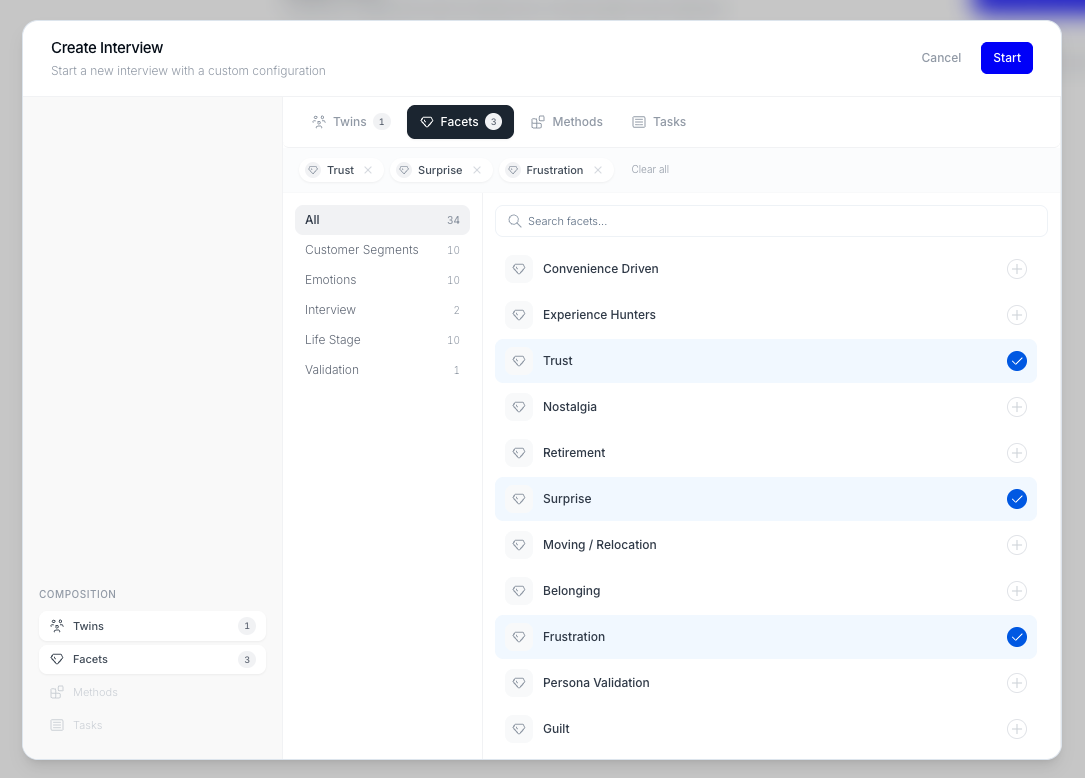
Within these tabs you can configure the twins that should participate in your new interview, and modify them using unique facets, or by giving them specific methods and tasks. Use the search within each tab to quickly find a twin or browse your collections.
Twins | At least one twin is required to start an interview. Twins respond in parallel during the conversation, and a summary of their responses is automatically generated afterward. | Up to 10 twins per interview |
Facets | Facets modify how twins respond by adding a specific perspective or lens. | Up to 20 facets per interview |
Methods | Methods are structured frameworks that guide how twins respond during the interview. | Up to 5 methods per interview |
Tasks | Tasks provide additional instructions or context for how responses should be generated. | Up to 5 tasks per interview |
Once you're happy with your configuration:
Click Start.
You’ll be redirected to the interview screen with your setup applied.
The interview title is generated automatically after your first meaningful interaction.
You can adjust your setup at any time:
Click the small configuration preview next to the chat input.
The setup dialog reopens.
Adjust your selections.
Click Save.
Changes apply only to future responses and do not affect earlier messages.